Schedule and track deliveries
For Owners & managers · 5 min read · Last reviewed 2026-08-04
A big piece has to get to the customer’s home, and “Saturday afternoon” needs to survive from the sale to the driver’s van. RetailPOS holds a delivery date and time windowon the order itself — a structured field, not a scribble in a notes box — so you can find and plan deliveries reliably.
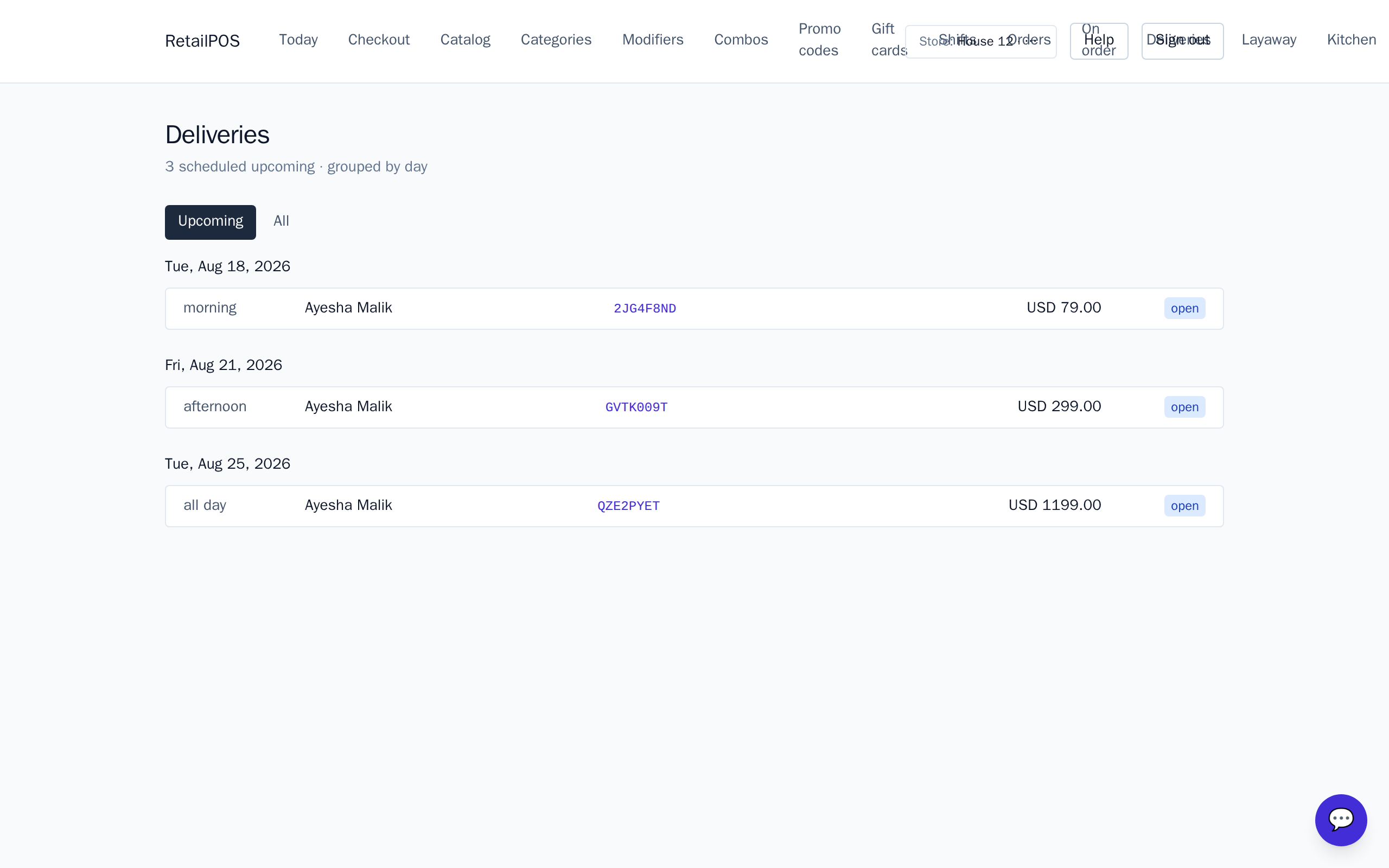
The Deliveriesdashboard gathers upcoming deliveries by date so you can build a route for the day rather than scrolling through every order looking for who’s expecting a sofa.
Set the delivery on the order
- On the order, set the delivery date and pick a time window the customer chose.
- Add a delivery service line — local, extended or white-glove — and assembly or haul-away if wanted.
- Because the date is a real field, the order will surface in the Deliveries dashboard for that day.
Plan the day from the Deliveries dashboard
Open Deliveriesin the back office to see upcoming deliveries grouped by date and time window. Use it to plan the driver’s run — who’s getting what, in what order, on which day — and to answer a customer ringing to ask when their piece is coming.
Frequently asked
- Can I filter deliveries by date?
- Yes. The delivery date is a structured field on the order, so the Deliveries dashboard groups upcoming deliveries by date rather than leaving you to scroll every order.
- How do I charge for delivery?
- Add a delivery service line to the order — local, extended or white-glove — alongside assembly or haul-away. They price per service level and total up with the goods.
Put it into practice.
Open your shop and try it live. Free until your first 100 sales — no card, keep your hardware.