Catalogue and barcodes
For Toy shop owners & managers · 5 min read · Last reviewed 2026-08-04
The toys pack ships a starter catalogue so you’re not staring at an empty screen. The job now is to make it yours: rename the sample lines, set prices, and put the right barcode on each product so the till finds it on a scan.
A curated shop of a few hundred lines beats a sprawling one you can’t keep straight, so tidy as you go — delete what you don’t carry and group everything under the category it belongs to.
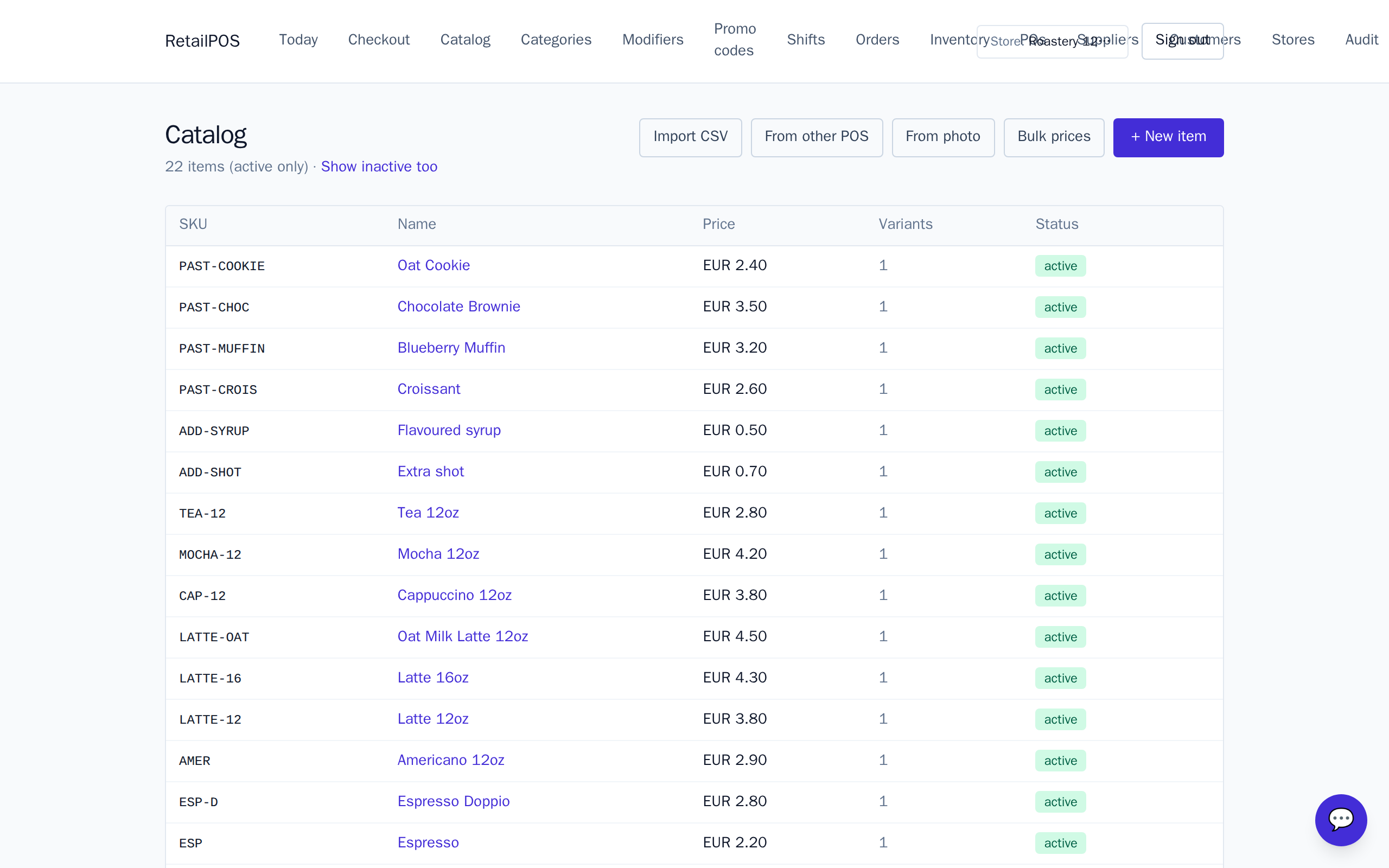
Tidy the seeded lines
Open the Catalogand work through the seeded products. Rename each to your own range, set your price, and move it to the right category. Remove anything you don’t stock.
Add a barcode to every product
- Open a product in the Catalog.
- Enter its barcode — the number printed on the manufacturer’s packaging.
- Save. From then on, scanning that barcode at the till drops the product straight onto the ticket.
Scan at the till
At checkout, a scan looks the product up by its barcode and adds it to the sale — no hunting through categories. Keep stock levels and low-stock thresholds set so you reorder popular lines before they sell out in December.
Frequently asked
- Where do the barcodes come from?
- Use the barcode printed on the manufacturer’s packaging. Enter it on the product and the till will find it on a scan.
- Can I bulk-load a new range?
- Yes. Import products from a spreadsheet in one pass rather than adding them one at a time — handy when seasonal stock arrives in waves.
Put it into practice.
Open your shop and try it live. Free until your first 100 sales — no card, keep your hardware.